

Adding an eBID to the Wool Book: Scanning missing eBIDs
Bales may be added to a WoolClip job without an eBID being recorded. This guide shows you how to quickly add a missing eBID to a bale in the Job wool book. The most efficient and timely way to record the eBID is as close to the time of pressing as possible. To keep...
Bales may be added to a WoolClip job without an eBID being recorded. This guide shows you how to quickly add a missing eBID to a bale in the Job wool book.
The most efficient and timely way to record the eBID is as close to the time of pressing as possible. To keep the workflow running smoothly this would be done by the Wool Classer or presser.
Ideally, the eBID is scanned at the same time the WoolClip job is entered and the bales are pressed. This is the quickest and easiest way to keep the wool book up to date.
However, if the eBIDs weren’t scanned at the time, don’t worry. They can be added later by another authorised person, making it easy to bring the wool book up to date.
Once a bale has been recorded in the wool book, another authorised person is able to add the eBID.
Bales recorded in the web or app Wool Book can be edited to;
- update the bale record and record the eBIDs, (shown in the app wool book with a red N)
- add a missing eBID to a bale record (red N)
- edit or rescan a bale (e.g. wool has been repressed)
- record eBIDs for bales on a finalised specification where the eBIDs have not been collected in the shed. Identified in the app wool book by the red N and a lock icon
Adding a missing eBID into WoolClip is quick and easy. Simply locate the bale, select Rescan and scan the QR code on the bale.
Steps when bales have been saved in the app or web and need to be scanned or re-scanned.
First add the person to the Team in the web to access the wool book.
- Sync the job to the app on the user’s device.
- Open the job wool book
- Locate the bale and number that needs to be updated from the wool book list.
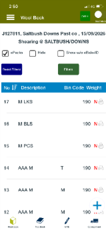
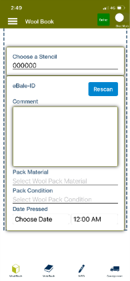
- Tap on the bale in the wool book. Scroll the screen view and locate Rescan.
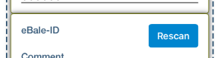
- Select Rescan to open the camera.
6.Hold the camera screen over the QR Code on the bale.
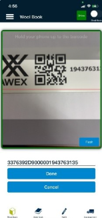
7. Once the bale has been updated, select save.
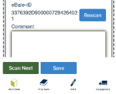
Sync the app to the web. All eBIDS will be updated in the cloud.
That’s it. The eBID has now been added to the bale record.
Note: Other bale details can also be edited at this stage but only the eBID can be added or edited on bales that are on a specification shown with the lock icon.
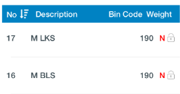
The wool book will show a green Y when a successful scan has been recorded.
Important:
The collaborative features of the WoolClip Team allow scanning access to any user with Wool Book access. Just select Full wool book access in the team security settings. Users can include the Marketing representative, Wool Grower, Wool Presser, Wool Handler.
Still need help?
Get in touch with our support team and we'll walk you through it.