

Adding Team Members
Use the Team module to add the people who need to view, update or receive information for a WoolClip Job
How to Add Team Members to a WoolClip Job
- The Team function in WoolClip supports collaboration
- Being added to a Team allows the user access to the Job
- All Jobs require a person with the role Owner/Manger to complete the NWD
- For Classed wool there will need to be a Wool Classer in the job
- The Team role of Job Administrator allows for full access to all Job module functions
A Wool Classer who starts a Job is automatically added to the Team as both Job Administrator and Wool Classer. When the Wool-ID is used and approved, the Wool Grower with a Farm Account is updated with role of Job Administrator and Owner/Manager. The Team module is accessed from the WoolClip web page login. It is not available in the app.
Step 1: Open the Job you are working on
Step 2: Open the Team Module
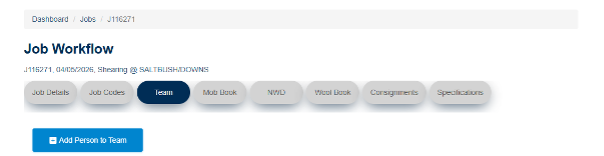
Step 3: Select Add Person to Team
Step 4: Enter their details as required. An email and/or mobile record is required.
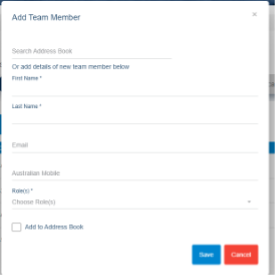
Step 5: Select the role that matches what the person needs to do in the Job
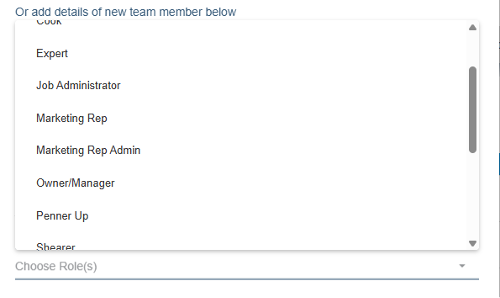
Examples of Team Members
- Add the Owner/Manager to declare the NWD
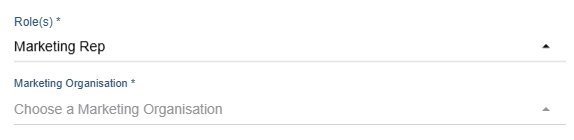
- Add the Marketing Rep and select organisation so they can view the Job and receive a copy of the specification on finalisation
- Add a Presser to add bales to the Wool Book for their own login
- A person with a WoolClip account will be identified in the Team with the person icon
- A person can have more the one role in the Team
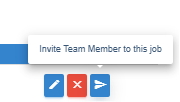
- A person without an account can be invited to create a username and password so they can log in and access the Job
Notes: There may be more than one Wool Classer in a Team working in the same Job
Next steps
When you are comfortable with this workflow, explore related guides, watch WoolClip how-to videos, or contact AWEX WoolClip support if you need help.
Still need help?
Get in touch with our support team and we'll walk you through it.