

Easy Steps to Scan an ePack QR Code
Learn how to scan an ePack QR code in the WoolClip app to record the eBID against each bale
Easy steps to scan an ePack QR Code in WoolClip
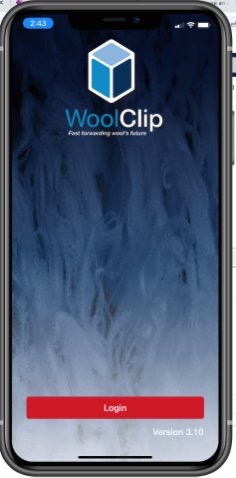
Step 1: Download the WoolClip app to a Smart Phone or tablet. Log in with your username and password.
Step 2: Open the Current Job in the WoolClip app
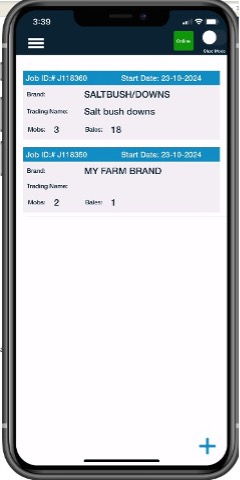
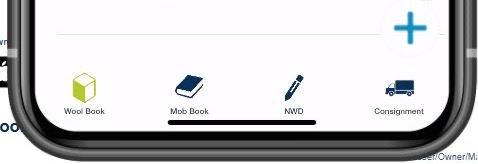
Step 3: Select the Wool Book icon. The icon is green when the wool book is open.
Step 4: Select the blue plus icon to add a new bale
Step 5: The scanning function will open. If ePack has not been selected, the app will skip scanning and open the bale details screen.
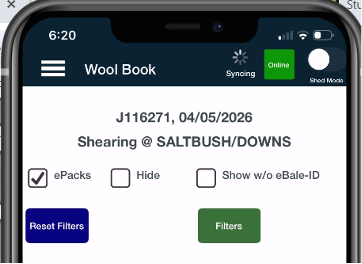
EPack is checked to activate the camera.
Step 6: Hold the device camera screen in the App over the QR code on the bale label.
Step 7: Keep the QR code in view until the app reads it
Step 8: A successful scan will automatically open to the bale details screen
Step 9: The scanner border is red while scanning and turns green when the scan is successful
Step 10: The eBID appears briefly on screen after a successful scan
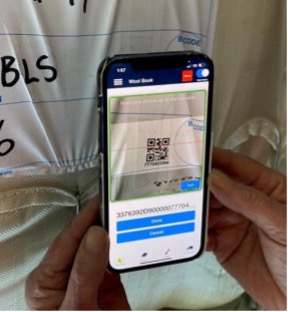
Important: Do not select Done unless you do not want to record an eBID. Select Cancel only if you want to close the add bale action.
Did you know?
If the QR code will not scan, you can manually enter the eBID printed under the QR code on the bale label.
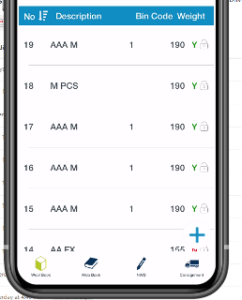
Check your work: Bales with an eBID will show in the Wool Book with a Green Y
Troubleshooting
QR Read Screen Is Blank
This usually means the WoolClip app cannot access the device camera.
- When first downloading the app, allow camera access and location settings when prompted
- If camera access was missed, open the device settings
- Go to Settings > Apps > WoolClip > Camera
- Switch camera access on
- Return to WoolClip and scan again
Next steps
When you are comfortable with this workflow, explore related guides, watch WoolClip how-to videos, or contact AWEX WoolClip support if you need help.
Still need help?
Get in touch with our support team and we'll walk you through it.