

Creating a Job Without Service
Use Quick Start when you need to create a job in the app while there is no service and one has not already been created in the Web
How to create a Quick Start job
The job can be started as a draft and completed later on in the WoolClip website.
Step 1: From the job screen, select the blue plus button to open a new job card
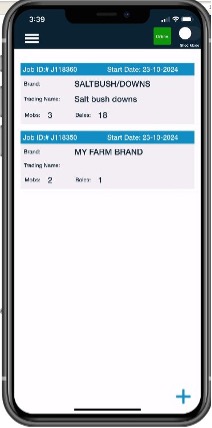
Step 2: Enter the available job details, Farm Brand and bale information
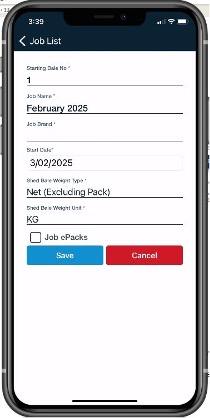
Step 3: Save the job
Step 4: Add mob details before adding bales to the wool book, so each bale can be allocated to the correct mob
What happens when the app syncs
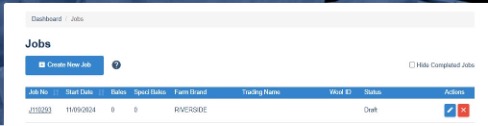
When the WoolClip website is opened and the app is online, the job will appear on the website as a draft. A job requires detailed and complete information before the workflow modules are avaibale and and before bales collected in the web are shown.
After syncing, return to the draft job on the website and complete all mandatory fields. Once completed, the data collected in the app while offline will appear in the relevant workflow modules, such as bales in the wool book.
Important reminders
- Return to the existing draft job. Do not start a new job in the app or on the website
- Check with other users before creating a job to avoid duplicate or unnecessary
Next steps
When you are comfortable with this workflow, explore related guides, watch WoolClip how-to videos, or contact AWEX WoolClip support if you need help.
Still need help?
Get in touch with our support team and we'll walk you through it.