

WoolClip Specification User Guide
This guide explains how to create, save, complete and send a WoolClip specification from the WoolClip website
What you need to know before completeing a WoolClip Specification
The WoolClip specification
A WoolClip specification is built and sent from the WoolClip website. It draws information from the modules in the Job, including mobs, bales, National Wool Declaration details, team details and trading information where available.
- Any user or team member with the Job administration role can build and complete a specification
- WoolClip requires connectivity to build and transmit the specification to the Marketing Organisation
- Each specification has a unique S number
- More than one specification can be created from the same Job
Before you start
- Open the Job in WoolClip on the website, not the mobile app
- Sync bale information saved in the App to the Web
- Where applicable check the Wool-ID in the Job has been approved
- Check the NWD has been completed and declared for all mobs
Create a new specification

Step 1: Open the Job in the web
Step 2: Select the Specification tab
Step 3: Select Add new specification
Step 4: Enter a specification name that helps identify the purpose of the specification, such as “All merino fleece lines”, “Young mobs” or “Spring shearing”.
Step 5: Review the specification date. This will auto-fill but can be edited if required.
Step 6: Select the Marketing Organisation
Step 7: Select the destination organisation or warehouse linked to the Marketing Organisation
Step 8: Complete or review trading details. These will be complete when a Wool-ID has been approved.
Step 9: Add required specification lines from bales in the Wool Book
Step 10: Select Save to keep the specification as a draft, or complete and send when ready
Draft specifications
A specification can be started, saved as a draft and completed later. Draft specifications are useful when some details are not yet confirmed, such as the Marketing Organisation, destination, selling date, trading details, Wool-ID approval or National Wool Declaration information.
Working with multiple specifications
More than one specification can be created from a single Job. The Marketing Organisation is selected at specification level, so individual specifications from the same Job can be sent to different Marketing Organisations.
Adding lines and sending the specification
- Add lines progressively to avoid a last-minute rush
- Save regularly while the specification is being built
- Send complete lines when they are ready for lotting
- Do not send part lines
- Compatible wool from different mobs may be lotted together where appropriate, such as cast lines or non-fleece wool
- WoolClip transmits each classed line and associated information as data, so separate specification sheets are not required for different mobs, breeds or Wool Classers
7. Key specification fields
| Field | What to enter or check |
| Specification name | Use a name that clearly identifies the specification, especially when there are multiple specifications in one Job. |
| Specification date | Auto-fills and can be edited if required. |
| Marketing Organisation | Select the broker or private treaty merchant. WoolClip uses this selection to send the finalised specification to the correct Marketing Organisation email. |
| Destination | Select the receival warehouse linked to the Marketing Organisation. This is where the physical bales are sent. |
| Client reference | Optional. Complete if known. This is not the Wool-ID. |
| Trading name | Mandatory. Trading details may populate from the Wool-ID where the Wool-ID has been added to the Job and approved. |
| Marketing rep | Select the relevant marketing representative from the Team module. Once the Marketing Organisation is selected, only representatives from that organisation will appear. |
| Selling instruction or specification comment | Add relevant free-form information where required. |
National Wool Declaration notes
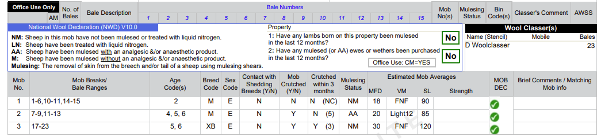
Check If the National Wool Declaration has been declared for every mob on the specification, The National Wool Declaration section has no limit on the number of mobs allocated. WoolClip specifications do not have page-space limitations. Specification lines can continue across multiple pages as needed.
Troubleshooting
| Issue | What to check |
| Cannot see the Specification tab. | Make sure you are accessing WoolClip through the website, not the app. If using a phone, slide the screen left to reveal more modules. Also check whether the Job is still in draft mode because it was started in the app. |
| The specification cannot be sent. | Check internet connectivity or service. WoolClip requires connectivity to build and transmit the specification to the Marketing Organisation. |
| Trading details are blank or must be completed manually. | Check whether the Wool-ID has been added to the Job and approved. If there is no farm account or approved Wool-ID, the user must complete trading details for the specification. |
| The grower has a Wool-ID but trading details still need to be completed. | Check the Job Wool-ID status. If it is pending, the wool grower needs to log in and approve it from the Wool-ID request in the Burger menu. |
Final checklist before sending
- The specification name clearly identifies the purpose of the specification
- The Marketing Organisation and destination are selected
- Trading name and required trading details are complete
- Has the Wool-ID has been added and approved
- Lines are complete and ready for lotting
- National Wool Declaration have been reviewed
- The “has shearing finished” option has been checked where applicable
- Any selling instruction or specification comment has been added
- Connectivity is available before sending
Next steps
When you are comfortable with this workflow, explore related guides, watch WoolClip how-to videos, or contact AWEX WoolClip support if you need help.
Still need help?
Get in touch with our support team and we'll walk you through it.