

How to Start a Job in WoolClip for a Wool Classer
Use this guide when setting up a new WoolClip Job before or at the start of shearing
Setting up a new WoolClip Job before or at the start of shearing
In WoolClip, a Job works like a digital wool book for a wool-growing season. The Job can be created by the Wool Classer, the Wool Grower with an account, or collaboratively by both parties. Jobs are usually started in the WoolClip web page. There is a draft Job option in the App that has offline functionality.
Step 1: Log in to WoolClip from the website using your Wool Classer account
If you’re not sure how to log in to WoolClip, check out this step-by-step guide
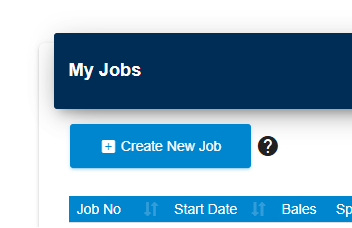
Step 2: From the dashboard select Create New Job. Think of the Job as the digital wool book for the season. The same Job may be used for later shearings in the same season, provided the details remain relevant.
Step 3: Enter the Wool-ID if the Wool Grower has a WoolClip farm account. This will populate farm details such as brand, PIC and farm location.

Step 4: If the Wool-ID is used, make sure the Wool Grower approves the link from the web or SMS notice. This link allows the Wool Grower and Wool Classer to access the same Job and Specification.
Step 5: Complete all mandatory fields marked with an asterisk *. If mandatory information is not yet known, enter a temporary value and update it later.
Step 6: Save the Job.

Remember to Login into the WoolClip App with your username and password and sync the job to the App while in service
Next steps
When you are comfortable with this workflow, explore related guides, watch WoolClip how-to videos, or contact AWEX WoolClip support if you need help.
Still need help?
Get in touch with our support team and we'll walk you through it.