

A Quick Guide to Sending a Consignment in the App
This user guide explains how to create and send a consignment using the Consignment module in the app
How to send a Consignment in WoolClip (App)
The process follows the same information requirements as the web consignment module. The App must have service and be set to online.
Step 1: Open the Consignment Module
From the app home screen, select the truck icon to open the Consignment module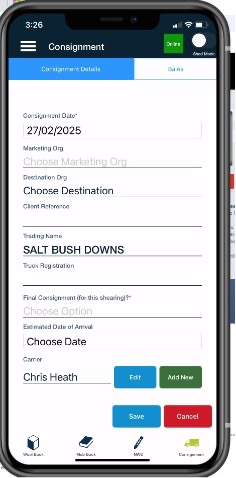
Step 2: Complete the Consignment Details
Enter the required consignment information. The app requires the same information as the web consignment module, so complete each field before continuing.
Step 3: Open the Bale List
Select Bales to display the bale list from the Wool Book
Step 4: Add Bales to the Consignment
As bales are loaded, use the check-off list to select and add each bale to the consignment. Check that each selected bale matches the physical bale being loaded.
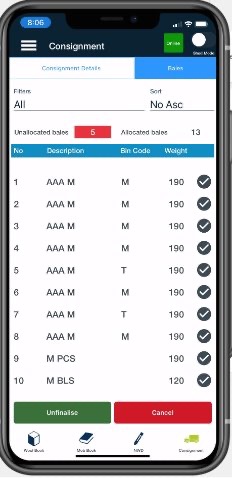
Step 5: Review and Finalise
When everything is complete and in service, select Finalise and send the consignment.
Tips:
- Use the Wool Book list as the source of truth for bale details
- Tick off bales as they are physically loaded to reduce errors
- If the bale list does not look correct to the physical bale detail, check the Wool Book and bale before finalising the consignment
Still need help?
Get in touch with our support team and we'll walk you through it.