

WoolClip App: Step-by-Step User Guide
This guide explains how to use the WoolClip app during wool harvesting
How to use the WoolClip App
This guide explains how to use the WoolClip app during wool harvesting, including how to access jobs, work offline, keep mob and wool book records, scan eBale QR codes, and create consignments. Both the App and the Web can be accessed on a mobile device.
Before You Start
- Get the latest version of the WoolClip App from the App Store or Google Play – Apple or Android
- Login with your username and password
- Where possible, create the job in WoolClip web first while in service
- Open the app while in service so active jobs can sync from the web
- Remember that the app can be used when there is no connectivity, but it must sync when service becomes available
Recommended Workflow: Job Created in WoolClip Web
Step 1: Create the job in WoolClip web while you have service. Include team members and mob information if known
Step 2: Open the WoolClip app while still in service
Step 3: Log in using your WoolClip username and password
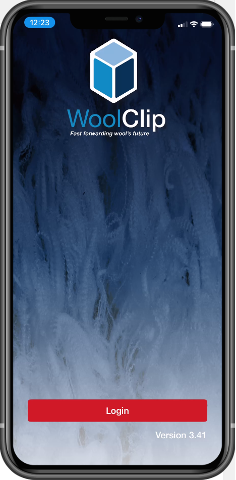
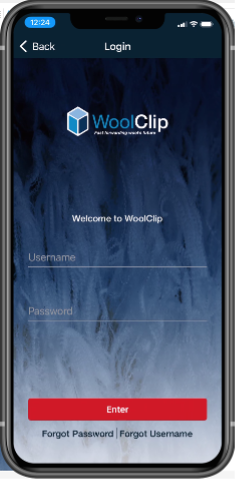
Step 4: Allow the app to sync active jobs from the web
Step 5: Check that the current job appears in the job list
Step 6: Tap the job field to open the job
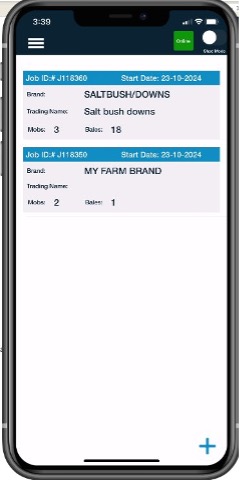
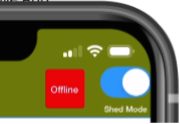
Step 7: It is recommended to Switch to Shed Mode to work offline, to improve App speed
Step 8: Use the bottom screen icons to move between app functions
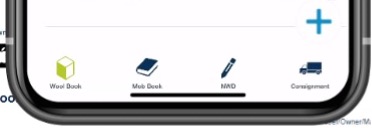
Step 9: Sync to the web when service is available
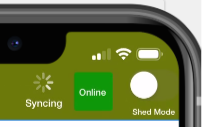
Note: When the app is opened in service, all active jobs available to the user will sync from the web. The user will only see jobs where they have set app access and are included in the team.
Did you Know?
Quick Start can be used to get you going when a job has not been started in WoolClip web. A Quick Start job will appear in the web as a draft.
What You Can Do in the App
- Mob Book: Add and maintain mob information during the job. Mobs can be added as they are presented for shearing or when details were unknown during job setup.
- Wool Book: Keep a wool book during the job. The app record should match the physical wool book.
- eBale scanning: Use the device camera to scan eBale QR codes and record the eBID.
- Traceability: Use time/date stamps and device location settings to support traceability.
- Consignment: Create and send a consignment as bales leave the shed.
Job Access and Syncing
- Only active jobs set up in WoolClip web will appear in the app job list
- App access is set at user level from the WoolClip website
- A user can log in to any device using their username and password
- The user is not limited to one specific phone or tablet
- Users with multiple jobs can reduce app data by closing completed jobs in the WoolClip website
- Jobs created using Quick Start in the app will only have Wool Book and Mob Book access until the required web details are completed
- When a job is created in the web the additional functions of NWD and Consignment are available in the app
Quick Reference Checklist
- Create the job in web first where possible
- Open the app in service
- Log in and sync active jobs
- Open the correct job
- Use Shed Mode if working offline
- Maintain Mob Book and Wool Book records during the job
- Scan eBale QR codes
- Create consignments as bales leave the shed where available
Next steps
When you are comfortable with this workflow, explore related guides, watch WoolClip how-to videos, or contact AWEX WoolClip support if you need help.
Still need help?
Get in touch with our support team and we'll walk you through it.